Guide
Why your interview notetaker never joins (and how to let it in on Meet, Zoom and Teams)
In real usage, 73% of failed notetaker joins were the bot never being admitted from the meeting waiting room or lobby. It timed out waiting to be let in, or it was removed from the waiting room.
Almost all real usage is Google Meet, so this guide starts there, then covers Zoom, then Microsoft Teams.
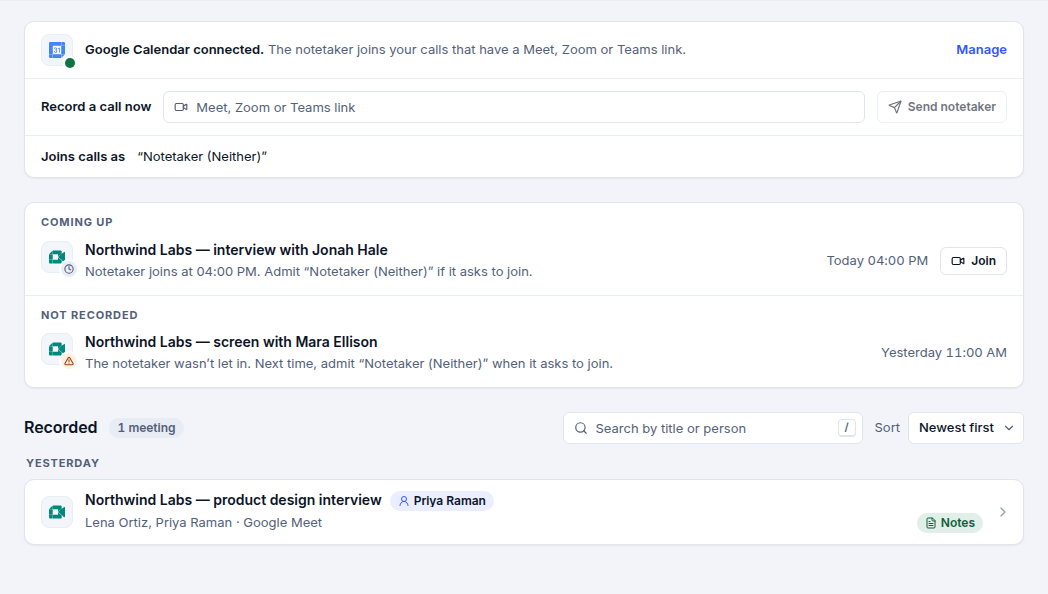
On the call it shows up as “Notetaker (Neither)”, unless your team renamed it. Admit that name.
Google Meet
Meet holds guests in a waiting room, or it asks them to knock. The host admits them. If knocking is switched off, Google denies third-party note takers automatically.
During the call
- Join the meeting on a computer. At the top right, click People. Click the control: hovering over it does not show who is waiting. Under “In the waiting room”, click Bring in next to the notetaker, or Bring everyone in.
- When a request to join appears instead, click Admit or Deny entry. If several people are waiting, click View all, then Admit next to one name, or Admit all. Only the meeting organizer can approve these requests, and the organizer needs to stay in the meeting.
Before the next interview
- Open Host controls from the Calendar event: Video call options, then Host controls, then Meeting access. During the meeting, Host controls is at the bottom right. Open means anyone with the link joins and nobody has to knock.
- Trusted means anyone in the host organization joins without knocking, and so does anyone outside it who was invited on the Calendar event. Everybody else must knock. Restricted means only people invited on the Calendar event, or added by a host during the meeting, can join. Everybody else must knock. Restricted is not available on a personal Google Account.
- On Trusted, keep “Anyone with the meeting link can ask to join” checked. On Restricted, keep “Anyone can ask to join, including people who dial in” checked. Clearing the box turns knocking off for that meeting. Anonymous users and third-party bots, like note takers, that try to use Ask to join are then denied automatically, with no action from the host.
- With a waiting room on the event, turn on Bring in automatically to move people in from the waiting room when you join. If a co-host joins, the meeting starts and everyone is moved in.
Official sources
Zoom
Zoom places people in a waiting room until the host admits them, unless the waiting room is off or that person is allowed to skip it.
During the call
- As the host, click Participants. In the Waiting Room section, click Admit next to the notetaker, or Admit all.
Before the next interview
- To let joiners in without a waiting room for this meeting, click Host tools and turn off Enable waiting room. People then join without being placed in the waiting room.
- To choose who waits in every meeting, sign in to the Zoom web portal, open Settings, then Meeting, then Security. Under Waiting Room, choose Edit Options and set Who should go into the waiting room.
- Everyone sends all joiners to the waiting room. Users not in your account sends people who are not on your Zoom account, or who are not signed in, to the waiting room. Users who are not in your account and not part of your whitelisted domains lets people on your account, or signed in at a domain you list, skip the waiting room.
- Users not on the meeting invite lets people invited through Zoom, or through a connected Google Calendar, Office 365, or Exchange calendar, join directly. Users not in your organization lets people from accounts connected in your organization skip the waiting room, while external participants still wait.
Official sources
Microsoft Teams
Teams holds people in the lobby until someone who is allowed to admit them lets them in, unless the lobby setting lets that kind of participant straight through.
During the call
- During the meeting, select People. Under Waiting in the lobby, select the check mark beside the notetaker to admit them, the X to deny them, or Admit all when it is shown.
- If Teams has identified that participant as a bot, the lobby notification does not include Admit. Open People and admit them from the list. Admitting an identified external bot, one at a time or with Admit all in the Waiting section, asks you to confirm, and tells you the bot may record or transcribe the meeting.
- Teams lists registered bots under Waiting, together with other people who are waiting. That section has Admit all. It lists unverified bots under Suspected threats. That section has Deny all.
Before the next interview
- Before the meeting, select Calendar, select the event, select View event, then Options. For a meeting series, select Edit series first. Under Meeting access, choose Who can bypass the lobby, then Apply.
- Everyone lets anyone with the link in directly. People who were invited does not let people without a Teams account past the lobby. People in my org lets only people in your organization in directly, and everyone else waits. Only organizers and co-organizers, People in my org and guests, and People in my org, trusted orgs, and guests also leave outside participants in the lobby.
- When Who can bypass the lobby is Everyone, anonymous participants who join first still wait until someone from your organization, a trusted organization, or a guest joins. They are then let in automatically.
- By default the organizer, co-organizers, and presenters can admit people from the lobby. The organizer changes that under Who can admit from the lobby, in the same Meeting access panel.
Official sources
Neither records and summarises interviews so recruiters can focus on the conversation.